Objective Development Objective Development
Little Snitch Micro Snitch LaunchBar More Products
Blog Products Shop Support

Little Snitch Support

Little Snitch Support

Little Snitch Support Resources

Lost License

Lost License

FAQ

FAQ

Documentation

Documentation

User Forum

User Forum

Twitter

Twitter

Contact us

Contact us

Frequently Asked Questions

  • General Questions

    • I have lost my license key!

      Please visit the Little Snitch Support pages and enter your email address to retrieve your lost license key. Little Snitch Support > Lost License
    • Is this a Little Snitch 2 or 3 license key?

      Little Snitch license keys can be distinguished by their first two characters. Little Snitch 3 license keys begin with “33…” and Little Snitch 2 license keys start with “32…”.
    • I have problems with my order!

      Please visit the for further information how to resolve order related issues. Contact our sales support team.
    • I didn’t receive my license key!

      Delivering of the license key may take up to 15 minutes. Please also make sure the email is not in your spam folder. If you still did not receive the license key please contact our sales support team.
    • Can I upgrade my Little Snitch 2 license key?

      If you bought Little Snitch 2 after May 1, 2012 you are eligible for a free upgrade. All other Little Snitch 2 license owners qualify for a price-reduced upgrade.
    • Can I use my single license on a second computer?

      A single license is valid for all your machines as long as you are the only user.
    • Can I use the family license on a laptop even if I am not at home?

      Of course! A family license is valid for up to five computers, used by people living in the same household.
    • How can I determine the number of seats necessary for a multi license?

      The number of required seats is either the number of computers or the number of persons using these computers — whichever number is lower. For example, an office with five employees and eight computers would need a 5-seat license to use Little Snitch on all computers.
  • Technical Questions

    • Can I preserve my rules when upgrading from Little Snitch 2 to 3?

      Yes. The upgrade procedure automatically converts your Little Snitch 2 rules. You can also import Little Snitch 2 or 3 rules from a backup using Little Snitch Configuration, menu item Rules / Import from Backup. Note that a complete uninstall may delete all your rules and settings!
    • Can I restore my rules from a Time Machine backup or any other backup?

      Yes. Please retrieve one of the following files from your backup:

      • Complete Ruleset: /Library/Application Support/Objective Development/Little Snitch/configuration.xpl
      • User Specific Ruleset: ~/Library/Application Support/Little Snitch/configuration.user.xpl

      Import the file as usual via Little Snitch Configuration > Rules > Import from Backup

    • Can I move the Little Snitch menu bar icon?

      Starting with maxOS 10.12 Sierra it’s possible to arrange third-party menu bar icons via Command-drag (hold down the Command key and drag the icon to the desired position).

      In previous OS X versions, third-party menu bar items are at fixed positions and can’t be moved. Third-party tools like Bartender makes it possible to arrange the items at will, though.

      Little Snitch supports Bartender, however it is necessary to allow scripting additions in Little Snitch first. To do so, go to Little Snitch Configuration > Preferences > Security and make sure Allow Scripting Additions is checked.

    • How can I backup my Little Snitch rules?

      Open the Little Snitch Configuration from the menu choose Rule > Backup. This will create a backup file at the location of your choice. You can restore your rules using that file at anytime via Rule > Import from Backup.
    • I have installed Little Snitch 3. Can I revert to version 2?

      Yes. Simply download Little Snitch 2 from our legacy download page and perform an “upgrade”. Your rules and settings will be restored to the status when you last used Little Snitch 2. If you perform a complete uninstall, your rules and settings will be lost.
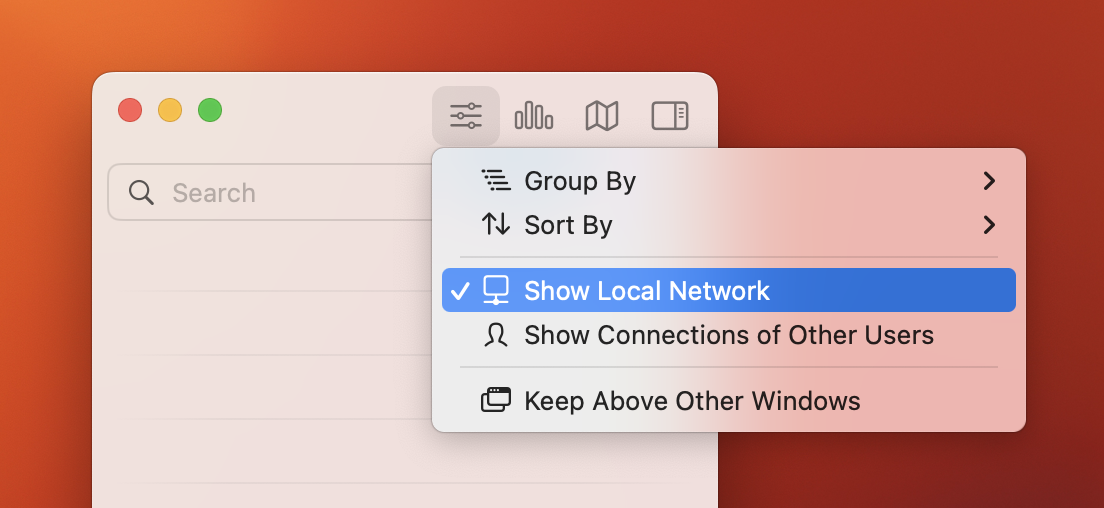
    • Why isn’t the Little Snitch Network Monitor showing my local network traffic?

      By default, local network traffic is hidden in Little Snitch Network Monitor. If you want to see this traffic as well, you just have to enable “Show Local Network” in the Little Snitch Network Monitor menu.
    • How can I turn off Little Snitch temporarily?

      Open the Little Snitch Configuration application from your Applications folder, open Preferences > General and click the Stop button to turn off the Network Filter. Any network traffic will then be allowed, such as if Little Snitch wasn’t installed at all. If you are using the Little Snitch menu bar item, you can also use the “Stop Network Filter” inside the menu.
    • How can I uninstall Little Snitch?

      As Little Snitch consists of multiple parts it is essential to run the Little Snitch Uninstaller to make sure all components are removed from your system. Little Snitch 3.4 or newer automatically starts the uninstaller as soon as you move the Little Snitch Configuration into your trash. For earlier versions please locate the installer in the following path /Library/Little Snitch/Little Snitch Uninstaller.app and start it manually.

      The uninstaller lets you choose whether to remove or preserve user specific data (like rules and settings). If you want to remove those items manually, locate and delete the following files and folders (the “~” tilde sign refers to your home folder):

      • /Library/Application Support/Objective Development/Little Snitch/
      • ~/Library/Application Support/Little Snitch/
      • ~/Library/Preferences/at.obdev.LittleSnitchConfiguration.plist
      • ~/Library/Preferences/at.obdev.LittleSnitchNetworkMonitor.plist
      • ~/Library/Preferences/at.obdev.LittleSnitchInstaller.plist

    • Does Little Snitch handle incoming network connections?

      Little Snitch handles outgoing network connections on all network interfaces (AirPort, PPP, network cards, etc.). It intercepts and defers an application’s network access until you decide to allow or deny the request, or it handles the request automatically based on an already defined rule.

      Little Snitch 3 or newer intercepts incoming connections as well. Incoming connections, rules, etc. can be recognized by the following icon Incoming Connection Icon

  • Troubleshooting

    • I cannot enter any characters into the license code field!

      Make sure that you are accessing the computer via a keyboard directly connected to it. Changing the settings or entering the license code via any kind of remote access (e.g. Screen Sharing) will not work with the default security settings of Little Snitch.
    • The language of Little Snitch changed from English to German!

      You would need to change the order of your preferred languages in your OS X System Preferences > Language & Region settings and make sure that English is further up in the list than German. After a restart Little Snitch should then be localized in English.
    • Little Snitch does not accept my license key!

      Valid licenses for Little Snitch 3 start with “33…” and are 25 characters long. Please copy and paste the license key to avoid typos. If it still does not work, please contact our sales support team.
    • My computer doesn’t start after installing Little Snitch!

      Little Snitch consists of multiple parts, some of them operating at a low level of the operating system, called the kernel. Little Snitch needs to trigger an update of kernel caches and requires a reboot during installation. Under rare circumstance this kernel cache update might fail, which may prevent your computer from starting.

      If this happens during the installation of Little Snitch on your computer, please start it in safe mode by holding the Shift (⇧) key (for more informations about safe mode see Apple HT201262). If you are using OS X Yosemite or earlier, please repair your disk permissions using Disk Utilities.app (for detailed instructions see How & Why to repair disk permissions in OS X). As second step, start the Little Snitch Installer once again and perform a restart as instructed.

      Usually this solves the issue. If you are still unable to start your computer, please get in touch with our tech support team.

    • How can I determine which rule is blocking a connection?

      In case Little Snitch blocks any process, this is indicated in realtime at the Little Snitch Network Monitor with the connection request blinking in red color. The hostname or IP address of the blocked connection will remain highlighted in red afterwards and you can right-click on it and choose “Show Corresponding Rule” to open up the Little Snitch Configuration and manage the rule.
    • I updated Little Snitch and now got a “Little Snitch Version Mismatch Detected” message. What does that mean?

      At least one component of Little Snitch has not been updated correctly and most likely this is related to an issue with the kernel cache. As Little Snitch consists of multiple parts (including a kernel extension) it is necessary to update the kernel cache after the installation. Updating the kernel cache might reveal issues with third-party extensions. Please try to restart the system, run the Little Snitch Installer again. If the issue persists please generate a diagnostics report and contact our tech support team.
  • Compatibility

    • Is Little Snitch compatible with macOS 10.12 Sierra?

      Yes, Little Snitch 3.7 or newer is compatible with macOS 10.12 Sierra.

      Download Little Snitch

    • Is Little Snitch compatible with OS X 10.11 El Capitan?

      Yes, Little Snitch 3.6 or newer is compatible with OS X 10.11.

      Download Little Snitch

    • Is Little Snitch compatible with OS X 10.10 Yosemite?

      Yes, Little Snitch 3.6 or newer is compatible with OS X 10.10.

      Download Little Snitch

    • Is Little Snitch compatible with OS X 10.9 Mavericks?

      Little Snitch 3.6.4 is the latest version compatible with OS X 10.9. The download is available on our legacy page.
    • Is Little Snitch compatible with OS X 10.8 Mountain Lion?

      Little Snitch 3.3.4 is the latest version compatible with OS X 10.8. The download is available on our legacy page.
    • Is Little Snitch compatible with OS X 10.7 Lion?

      Little Snitch 3.3.4 is the latest version compatible with OS X 10.7. The download is available on our legacy page.
    • Is Little Snitch compatible with OS X 10.6 Snow Leopard?

      Little Snitch 3.3.4 is the latest version compatible with OS X 10.6. The download is available on our legacy page.
    • Is Little Snitch compatible with OS X versions prior to 10.6?

      Legacy versions of Little Snitch provide support back to OS X 10.2 Jaguar. Downloads are available on our legacy page.
    • Will Little Snitch be available for iOS, tvOS and watchOS?

      Unfortunately Apple’s regulations and submission guidelines do not allow applications like Little Snitch that operate on the system level on the iOS (iPhone, iPad, iPod touch), tvOS (Apple TV), or watchOS (Apple Watch) platforms.
    • Will Little Snitch be available for other operating systems like Linux or Windows?

      Our entire team consists of longtime OS X developers and we love the Mac platform. It is therefore very unlikely that a version for a different platform will be available in the near future.
Language:
English | Deutsch
© 2016 Objective Development Software GmbH | About Us | Press

© 2016 Objective Development Software GmbH

About Us | Press